Accessing cloud APIs securely
Workloads in Cloudfleet Kubernetes Engine (CFKE) often need to access cloud APIs, for example AWS S3, GCP Cloud Storage, or Azure Blob Storage. Use CFKE’s Kubernetes service accounts to authenticate your workloads to these cloud APIs without hardcoded keys.
Overview
Like standard Kubernetes deployments, CFKE mounts an OIDC token to every Pod in the cluster. The default mount path is /var/run/secrets/kubernetes.io/serviceaccount/token.
The token has the following payload:
{
  "aud": [
    "https://api.cloudfleet.ai/v1/clusters/CLUSTER_ID"
  ],
  "exp": 1762601362,
  "iat": 1731065362,
  "iss": "https://api.cloudfleet.ai/v1/clusters/CLUSTER_ID",
  "kubernetes.io": {
    "namespace": "POD_NAMESPACE",
    "pod": {
      "name": "POD_NAME",
      "uid": "POD_UID"
    },
    "serviceaccount": {
      "name": "SERVICE_ACCOUNT_NAME",
      "uid": "SERVICE_ACCOUNT_UID"
    },
    "warnafter": 1731068969
  },
  "nbf": 1731065362,
  "sub": "system:serviceaccount:SERVICE_ACCOUNT_NAMESPACE:SERVICE_ACCOUNT_NAME"
}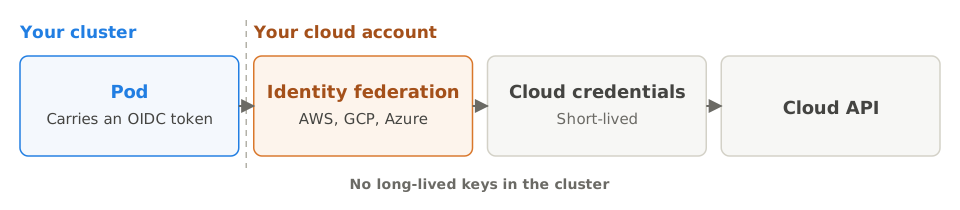
The JWT issuer https://api.cloudfleet.ai/v1/clusters/CLUSTER_ID serves as an OIDC discovery endpoint. Third-party services can use it to validate this token. If a third-party service can validate and trust external OIDC tokens, it can use the token of every Pod in your CFKE cluster for authentication. As a result, your workloads can access cloud APIs without hardcoded keys.
The CSI drivers for Amazon EBS and GCP Persistent Disk use the same mechanism to manage volumes without keys.
Creating a Kubernetes service account
To configure this feature, first create a Kubernetes service account in your cluster. Each namespace has a default service account. If you do not specify a service account in your Pod definition, Kubernetes uses the default one. As a best practice, create a dedicated service account for your workloads.
Example Kubernetes service account definition:
apiVersion: v1
kind: ServiceAccount
metadata:
  namespace: default
  name: example-application
In the following steps, you assign this service account to your application Pods.
Example: Amazon Web Services (AWS)
Configure your AWS account to trust the OIDC token that CFKE issues. Your workloads can then access AWS services without hardcoded keys.
Create an OpenID Connect (OIDC) identity provider in IAM.
Use the AWS CLI to create an OIDC identity provider. Replace
CLUSTER_IDwith your cluster ID.aws iam create-open-id-connect-provider \ --url https://api.cloudfleet.ai/v1/clusters/CLUSTER_ID \ --client-id-list https://api.cloudfleet.ai/v1/clusters/CLUSTER_IDFor more information about creating an OIDC provider, see the AWS documentation.
Create an IAM role.
The role must have the following trust policy:
{
    "Version": "2012-10-17",
    "Statement": [
        {
            "Effect": "Allow",
            "Principal": {
                "Federated": "arn:aws:iam::AWS_ACCOUNT_ID:oidc-provider/api.cloudfleet.ai/v1/clusters/CLUSTER_ID"
            },
            "Action": "sts:AssumeRoleWithWebIdentity",
            "Condition": {
                "StringEquals": {
                    "api.cloudfleet.ai/v1/clusters/CLUSTER_ID:aud": "https://api.cloudfleet.ai/v1/clusters/CLUSTER_ID",
                    "api.cloudfleet.ai/v1/clusters/CLUSTER_ID:sub": "system:serviceaccount:KUBERNETES_SERVICE_ACCOUNT_NAMESPACE:KUBERNETES_SERVICE_ACCOUNT_NAME"
                }
            }
        }
    ]
}
Replace
AWS_ACCOUNT_ID,CLUSTER_ID,KUBERNETES_SERVICE_ACCOUNT_NAMESPACE, andKUBERNETES_SERVICE_ACCOUNT_NAMEwith your AWS account ID, CFKE cluster ID, Kubernetes service account namespace, and Kubernetes service account name.Attach an IAM policy to the role. For example, this command attaches the managed
AmazonS3ReadOnlyAccesspolicy to the IAM role:aws iam attach-role-policy \ --role-name ROLE_NAME \ --policy-arn arn:aws:iam::aws:policy/AmazonS3ReadOnlyAccessReplace
ROLE_NAMEwith the name of the role from the previous step.Create a Pod that uses the service account.
apiVersion: v1
kind: Pod
metadata:
    name: example-application
    namespace: default
spec:
    serviceAccountName: example-application
    containers:
        -   name: awscli
            image: amazon/aws-cli:latest
            command:
                - "sleep"
                - "infinity"
            env:
                -   name: AWS_WEB_IDENTITY_TOKEN_FILE
                    value: /var/run/secrets/kubernetes.io/serviceaccount/token
                -   name: AWS_ROLE_SESSION_NAME
                    value: cfke-session
                -   name: AWS_ROLE_ARN
                    value: arn:aws:iam::AWS_ACCOUNT_ID:role/ROLE_NAME
The AWS SDK supports the
AWS_WEB_IDENTITY_TOKEN_FILE,AWS_ROLE_SESSION_NAME, andAWS_ROLE_ARNenvironment variables to assume a role automatically with an OIDC token. The AWS SDK reads the token from its mount path and callsAssumeRoleWithWebIdentityto assume the IAM role you created. You can also implement these steps in your own application code.Verify that the Pod can list the AWS S3 buckets in the AWS account.
kubectl exec -n default example-application -- aws s3 lsExample: Google Cloud Platform
On Google Cloud Platform, configure GCP to trust the OIDC tokens that your Cloudfleet cluster issues. Your workloads can then authenticate to GCP services through Workload Identity Federation.
First, create a Workload Identity Pool and configure it to trust the OIDC tokens that your CFKE cluster issues. Example Terraform code:
variable "cfke_cluster_id" {
  type        = string
  description = "The cluster ID for the CFKE cluster"
  default     = "CLUSTER_ID"
}

resource "google_iam_workload_identity_pool" "cfke" {
  workload_identity_pool_id = "cfke"
  display_name              = "CFKE"
  disabled                  = false
}


resource "google_iam_workload_identity_pool_provider" "cfke" {
  workload_identity_pool_id          = google_iam_workload_identity_pool.cfke.workload_identity_pool_id
  workload_identity_pool_provider_id = "cfke"
  display_name                       = "CFKE"
  attribute_mapping = {
    "google.subject" = "assertion.sub"
  }
  oidc {
    allowed_audiences = [
      "https://api.cloudfleet.ai/v1/clusters/${var.cfke_cluster_id}"
    ]
    issuer_uri = "https://api.cloudfleet.ai/v1/clusters/${var.cfke_cluster_id}"
  }
}

output "cfke_workload_identity_pool_provider-id" {
    value = google_iam_workload_identity_pool.cfke.id
}
After you create the Workload Identity Pool, refer to it in your IAM policies with direct resource access. For example, you can grant the Kubernetes service account’s federated identity the roles/storage.objectViewer role on a bucket directly, without creating a GCP service account:
resource "google_storage_bucket_iam_member" "example-bucket" {
    bucket = "example-bucket" # Replace with your bucket name
    role   = "roles/storage.objectViewer"
    member = "principal://iam.googleapis.com/${google_iam_workload_identity_pool.cfke.name}/subject/system:serviceaccount:K8S_NAMESPACE:K8S_SERVICE_ACCOUNT_NAME"
}
Replace K8S_NAMESPACE and K8S_SERVICE_ACCOUNT_NAME with the namespace and name of the Kubernetes service account you created earlier. The example uses the pool’s name attribute because principal identifiers must contain the project number, not the project ID.
Example: Microsoft Azure
On Microsoft Azure, configure Azure to trust the OIDC tokens that your Cloudfleet cluster issues through Workload Identity Federation. Your workloads can then authenticate to Azure services such as Azure Blob Storage and Azure Key Vault without hardcoded credentials.
Create a Microsoft Entra application and service principal.
In the Azure portal, go to Microsoft Entra ID > App registrations > New registration. Create a new application for your CFKE workloads.
Configure federated credentials.
In your application, go to Certificates & secrets > Federated credentials > Add credential. Configure the following:
- Federated credential scenario: Other issuer
- Issuer:
https://api.cloudfleet.ai/v1/clusters/CLUSTER_ID - Subject identifier:
system:serviceaccount:KUBERNETES_NAMESPACE:KUBERNETES_SERVICE_ACCOUNT_NAME - Audience:
https://api.cloudfleet.ai/v1/clusters/CLUSTER_ID
Replace
CLUSTER_ID,KUBERNETES_NAMESPACE, andKUBERNETES_SERVICE_ACCOUNT_NAMEwith your cluster ID and Kubernetes service account details.Assign Azure RBAC roles.
Grant the service principal access to Azure resources. For example, to grant read access to a storage account:
az role assignment create \
  --role "Storage Blob Data Reader" \
  --assignee APPLICATION_CLIENT_ID \
  --scope /subscriptions/SUBSCRIPTION_ID/resourceGroups/RESOURCE_GROUP/providers/Microsoft.Storage/storageAccounts/STORAGE_ACCOUNT
Create a Pod that uses the service account.
apiVersion: v1
kind: Pod
metadata:
  name: azure-example
  namespace: default
spec:
  serviceAccountName: example-application
  containers:
  - name: azure-cli
    image: mcr.microsoft.com/azure-cli:latest
    command: ["sleep", "infinity"]
    env:
    - name: AZURE_CLIENT_ID
      value: "APPLICATION_CLIENT_ID"
    - name: AZURE_TENANT_ID
      value: "AZURE_TENANT_ID"
    - name: AZURE_FEDERATED_TOKEN_FILE
      value: "/var/run/secrets/kubernetes.io/serviceaccount/token"
Replace
APPLICATION_CLIENT_IDandAZURE_TENANT_IDwith your application’s client ID and Azure tenant ID.Verify access to Azure resources.
kubectl exec -n default azure-example -- sh -c 'az login \
  --federated-token "$(cat /var/run/secrets/kubernetes.io/serviceaccount/token)" \
  --service-principal -u APPLICATION_CLIENT_ID \
  -t AZURE_TENANT_ID'
kubectl exec -n default azure-example -- az storage blob list \
  --account-name STORAGE_ACCOUNT \
  --container-name CONTAINER_NAME \
  --auth-mode login
Other cloud providers
The same principle applies to other cloud providers and third-party services that support OIDC tokens. Create a trust relationship between the OIDC provider (CFKE) and the cloud provider or third-party service. Your workloads can then authenticate securely without hardcoded keys.